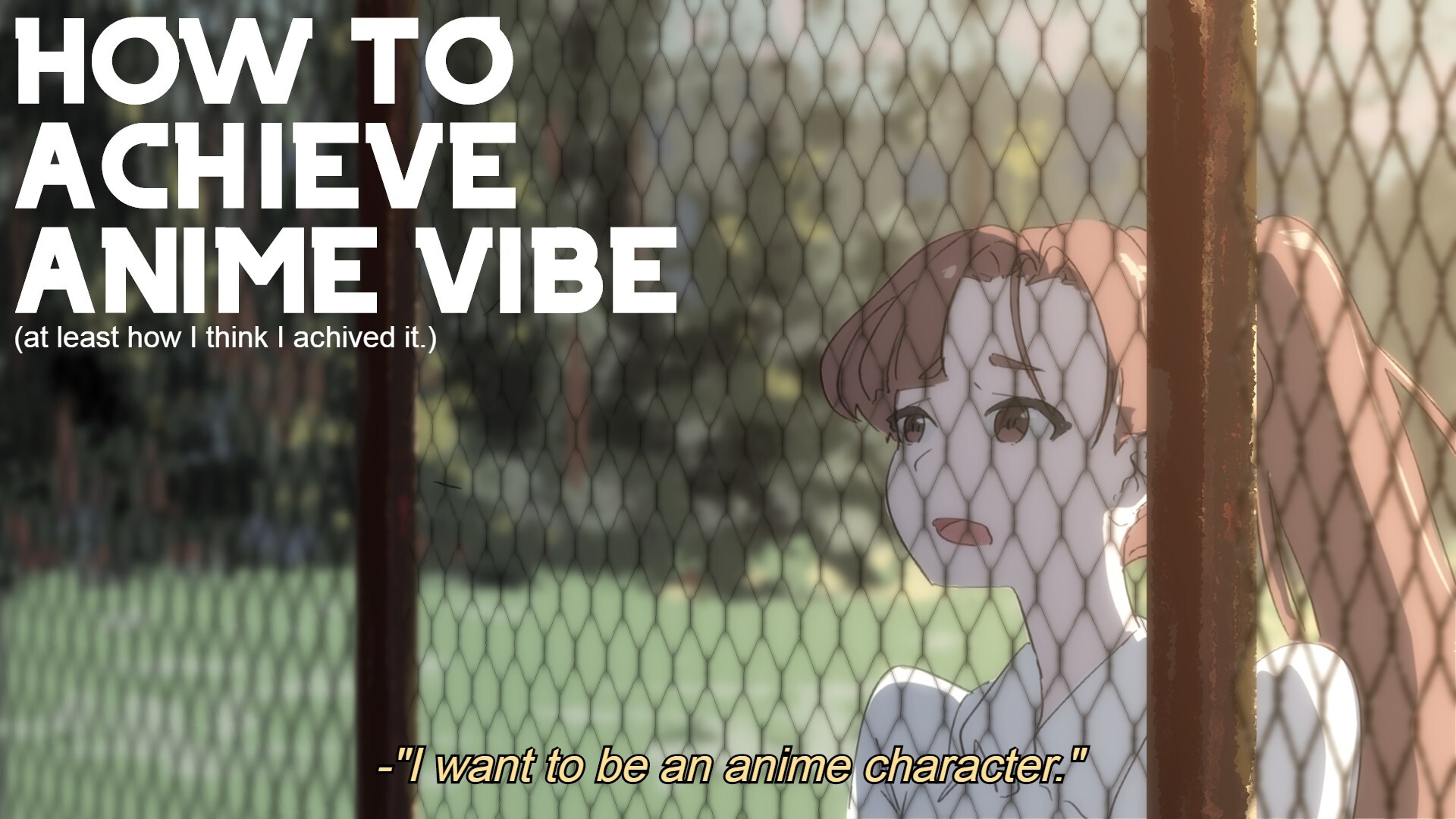
HOW TO ACHIEVE ANIME VIBE
HOW TO ACHIEVE ANIME VIBE.
I recommend see in its Facebooks Post-->https://www.facebook.com/media/set/?set=a.5231612933531018&type=3
Step 01
--first, you can either clean your sketch or make the line art out of it. your choice.
Step 02
--There are many ways to color your drawing. there are certain ways of how you should color if you want to go in the animation direction. for example by using two separate layer for black ink, and guide ink Red for highlight, blue for shadow, green for guide. then export it to coloring program (for example OpenToonz)
(each studio can have their own guide ink rules and condition)
for this one, since it was a single frame/picture, i go with traditional ways of base color then extra layers clipped in.
Step 03
--Then we add the background, the type of anime vibe is heavily impacted by its background.
each studio or anime production have their own methods of how its drawn and colored
for example if you compare Ghibli, makoto shinkai, and Ufotable they all have their own ways of producing the background. you can use photobashing, 3d rendered, or your own ways.
usually i use photo reference from a film or picture i took then colored it simple because it usually will be blurred anyway.
Step 04
--Since i want the character behind a fence, then I add some fence drawing.
you can add as many as foreground you want, but I recommend to put it simple or neatly organized.
***the layer hierarchy for background, Character, and foreground layers.
Step 05
--Since I'm heavily bias to Shinkai's artwork, he use blur to mimic the depth of field camera len's made. you can look another example in Loundraw's artwork or animation in his youtube channel. because i use simple background i can just blur the layer, but if you have different layers of object, then you must calculate how each distance effect the blurriness.
it is easier to do that complexity if you make it in 3d space inside after effect or 3d program like blender and activate the depth of field.
Step 06
--because the light source direction, i create a layer and set it to multiply for overall shadow.
***i put the shadow in the color base clipping group.
Step 07
--Shade.
the color of the shade depend on how you pick the color palette. for example, if you pick sunny day, then using color theory we can pick bright yellow for the flare and rich dark blue for its shade.
try experimenting with it, since im not confidence with my color fundamental.
***Flare. yeah flare is cool
Step 08
--make the flare layer into Screen Type/Blend
and the shade into Multiply.
I usually play with the opacity around 30% for flare and 40% for shade, but you can do what you like in here.
Step 09
--Group all the folder and layer you have so far.
Step 10
--then duplicate the folder and merge the duplicated folder into a single layer.
inside the original folder you can add curve that clipped into the folder for enhancing the color. I usually darken it a bit by dragging the line slightly down.
Step 11
--now you can set into Screen type and blur the single merged layer. I usually go around 20-30% blur, but you can experiment it here to match your liking.
Step 12
--Color Balance/Gamma
it depends on what program you use, but since im using Clip Studio Paint, then right click on the single merged layer then go to new layer correction---> Color balance.
now check off the "Keep brightness" in the left down corner. and cranked down all the slider to the left.
this make the brightness effect not overexposure.
***you can set the opacity of the layer correction or the screen layer to match your liking. the bigger it goes the more daydreaming feels it got.


Step 01
first, you can either clean your sketch or make the line art out of it. your choice.

Step 02
There are many ways to color your drawing. there are certain ways of how you should color if you want to go in the animation direction.
for example by using two separate layer for black ink, and guide ink
Red for highlight, blue for shadow, gree

or example if you compare Ghibli, makoto shinkai, and Ufotable they all have their own ways of producing the background.
you can use photobashing, 3d rendered, or your own ways.
usually i use photo reference from a film or picture i took then colored it

Step 04
Since i want the character behind a fence, then I add some fence drawing.
you can add as many as foreground you want, but I recommend to put it simple or neatly organized.

progress

Step 05
Since I'm heavily bias to Shinkai's artwork, he use blur to mimic the depth of field camera len's made. you can look another example in Loundraw's artwork or animation in his youtube channel.
because i use simple background i can just blur the l

Step 06
because the light source direction, i create a layer and set it to multiply for overall shadow.

Step 07
Shade.
the color of the shade depend on how you pick the color palette. for example, if you pick sunny day, then using color theory we can pick bright yellow for the flare and rich dark blue for its shade.
try experimenting with it, since im not

Flare
yeah flare is cool

Step 08
make the flare layer into Screen Type/Blend
and the shade into Multiply.
I usually play with the opacity around 30% for flare and 40% for shade, but you can do what you like in here.

Step 10
then duplicate the folder and merge the duplicated folder into a single layer.
inside the original folder you can add curve that clipped into the folder for enhancing the color. I usually darken it a bit by dragging the line slightly down.

Step 11
now you can set into Screen type and blur the single merged layer. I usually go around 20-30% blur, but you can experiment it here to match your liking.

Overview